Give Dory some contextual memory
Short-term or contextual memory is essential for multi-turn chatbots. Without it, conversations are terribly frustrating and the user experience is plain bad. (This does not apply for single-turn AI Agents; for example, those that just summarise text.)
So, in this section we will work on giving some memory to Dory, the AI Agent we developed on our previous tutorial.
As outlined in the Architecture section, Forma agents are stateless. This means that they do not have any memory and thus you need to keep track of the conversation either on the client (e.g., on the browser) or on a database. This tutorial will focus on keeping the sessions on a database.
Note: If you are interested in keeping the messages on the client, you might be intereseted in this example.
1. Turn on the development services
Because Forma agents are stateless, we need to run an external service (a database) to keep the memories. We have provided you with a file that defines the basic services that we use for developing Forma agents. These include:
- Arize Phoenix, for running evaluations (more on that on the Evaluation section)... we will not use this during this tutorial.
- Mongo, which is the actual datbase we will use during development
- Mongo Express, a nice user interface that we can use to audit what is stored in our development database.
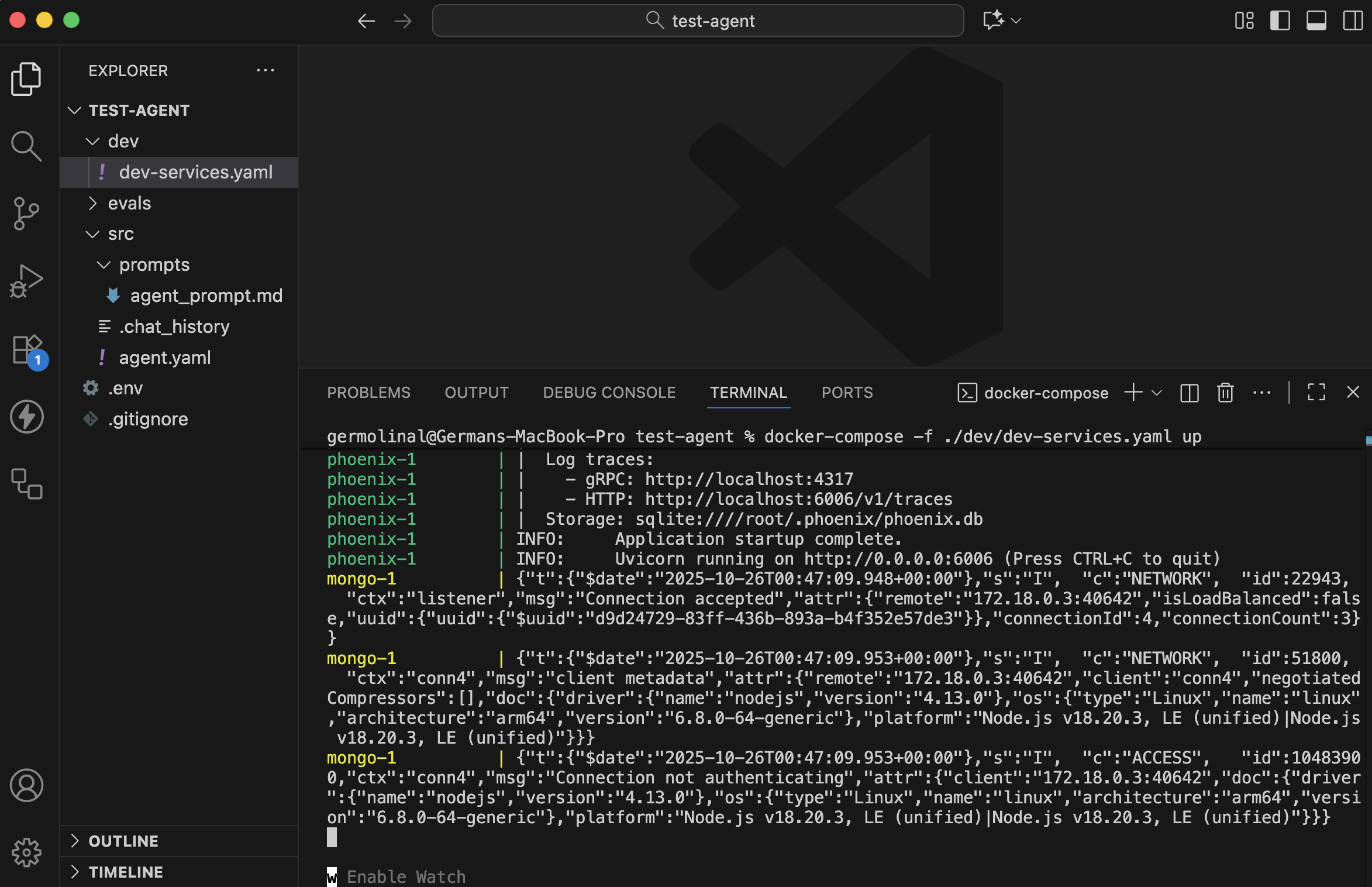
These three services are defined and setup in the dev/dev-services.yaml file, which you can use by running the following:
# You need to have docker-compose installed
docker-compose -f ./dev/dev-services.yaml up
This will run the three services together, and a lot will be printed into the terminal.
📌 Note: You can run these services on the background or on a different terminal, so as to keep your Text editor's terminal clear.
If you check the contents of the ./dev/dev-services.yaml file, you should fined something like this. Check the comments for details of what each element does:
services:
  # Used for LLM Evaluation and observability.
  phoenix:
    # Using the 'latest' version. It is recommended to choose one when
    # deploying.
    image: arizephoenix/phoenix:latest
    ports:
      - "6006:6006" # The UI and the Rest API is at localhost:6006
      - "4317:4317" # The OpenTelemetry endpoint is at localhost:4317

  # Used to emulate the Sessions database locally
  mongo:
    # the official MongoDB image
    image: mongo
    restart: always
    environment:
      # Authentication. Services connecting to this database
      # need to provide these
      MONGO_INITDB_ROOT_USERNAME: root
      MONGO_INITDB_ROOT_PASSWORD: example
    ports:
      - "27017:27017"
  mongo-express:
    image: mongo-express
    restart: always
    ports:
      # You can visit https://localhost:8081 to see the contents of the database
      - 8081:8081
    environment:
      # Note the username and password we had defined in the mongo service
      # Also this value should be the same as the SESSIONS_DB_URL in the
      # .env file
      ME_CONFIG_MONGODB_URL: mongodb://root:example@mongo:27017/
      ME_CONFIG_BASICAUTH_ENABLED: false
      # The username and passwords used to access the UI
      ME_CONFIG_BASICAUTH_USERNAME: user
      ME_CONFIG_BASICAUTH_PASSWORD: password
The most relevant elements here are:
- The user and password for the UI if the database service are
userandpassword, respectively - The mongo service has a username and password of
rootandexample, respectively. These shape theME_CONFIG_MONGODB_URL, which ismongodb://root:example@mongo:27017/. This is how you authenticate to this database. - Your
.envfile should have a variableSESSIONS_DB_URLthat matches this value (maybe with some extra settings; for example,mongodb://root:example@localhost:27017/?directConnection=true)
2. Open the UI for your database service
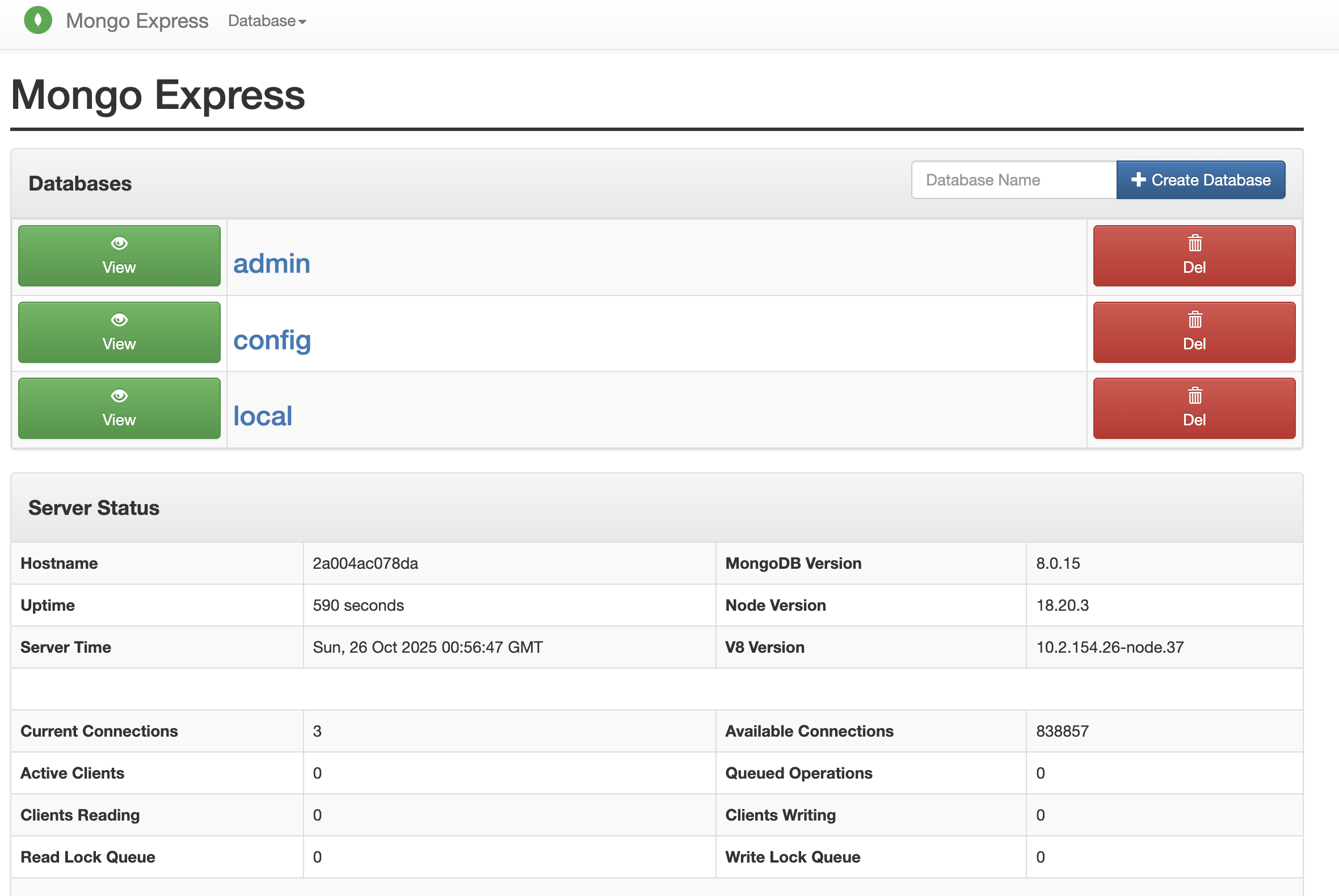
Go to http://localhost:8081 and use the user and password defined in the mongo-express configuration above: user and password, respectively.
You should see something like the following:
3. Configure Dory so it has a memory
This is very easy. Go to the runtime.yaml file, and add a persist_sessions: true field. This will tel Forma that every message and response should be stored in the database.
persist_sessions: true # <-- HERE!
client: sync
4. Chat and see your conversation in the database
Open a new Terminal tab or window, and run forma chat.
forma chat
📌 Note: In order for this to work, the database needs to be running.
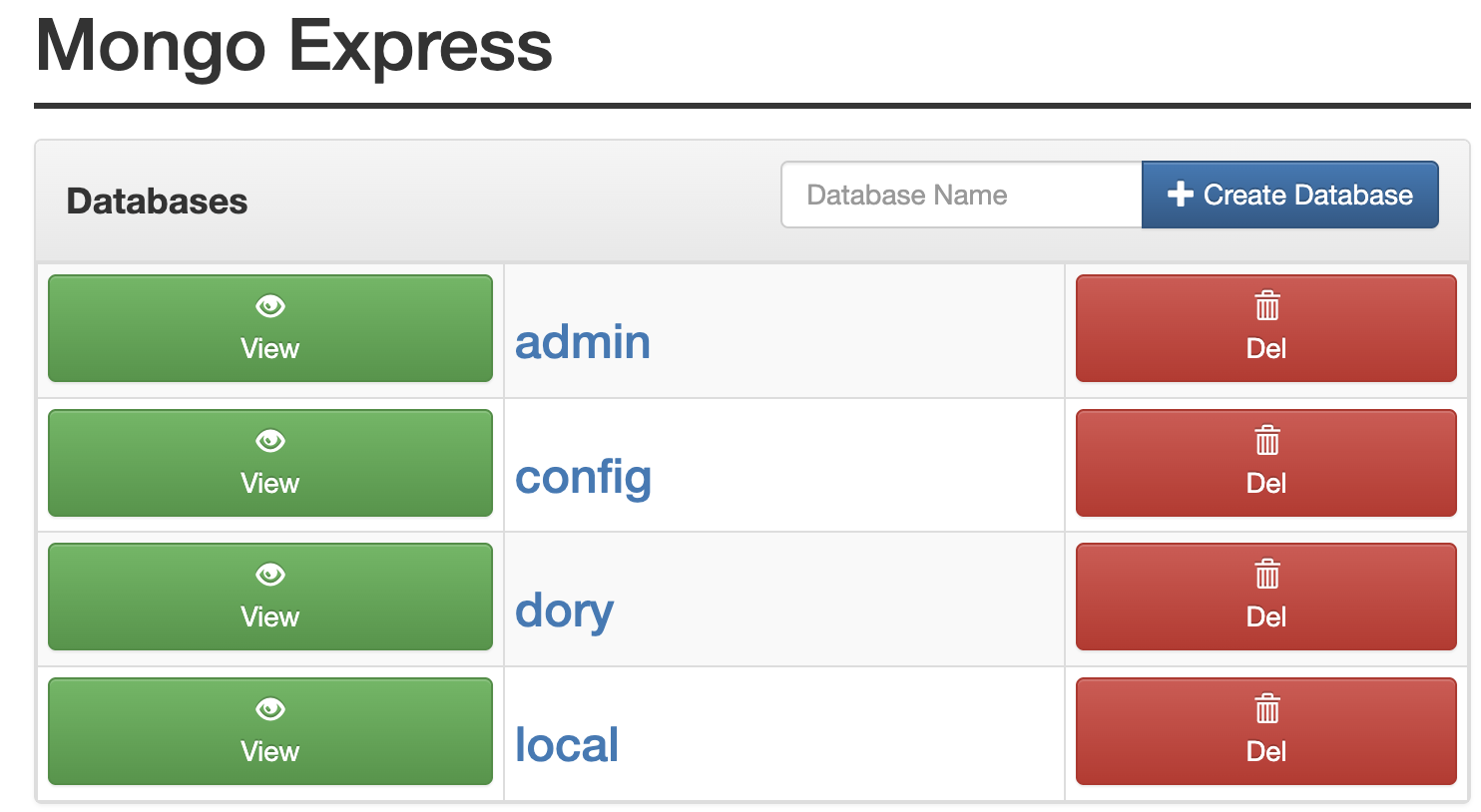
If you go to http://localhost:8081, you should now see a new database called dory; and within it, a collection called ai_agent_sessions. All the messages you send, as well as Dory's responses, will be stored in this database.
What is next? We scale! 🚀
Dory is a very simple AI agent. In fact, it can be considered an LLM Wrapper: it sends a message to an LLM, and it responds it. But from here, things will become more complex. We will add tools and workflows, allowing for a complex processing logic for each request.
The next section is about Observability, which will let us understand what happens on every request. Getting into the habit of reading observability reports is very important for two reasons:
- Because, once you deploy any AI agent, you do not get access to the code any more (this is true for nearly all frameworks, not just Forma). All you can do to monitor what is happening when your real users/clients interact with your agent is through observability.
- Because with Forma—contrary to other frameworks—your experience during development is nearly identical to your experience after deployment. That is to say, you do not get to see what the code is doing exactly, but you do get to see what happens within the agent thanks to observability.
See you in the next section!